You can add a Facebook feed to your website using a native Facebook embed or a third-party Facebook feed widget like Taggbox. A widget is often the easier option when you want automatic updates, responsive layouts, customization, moderation, and a simple way to display Facebook content across different website platforms.
In this guide, you’ll learn the different ways to add a Facebook feed, how to embed one using HTML and WordPress, how to display Facebook Page content, what to do about Facebook Groups and Live content, and which approach makes the most sense for your website.
What Is a Facebook Feed on a Website?
A Facebook feed is a stream of Facebook content displayed directly on a website. Depending on the implementation, it can show posts, photos, videos, and other supported content from a Facebook Page or connected source.
There is an important distinction between an individual Facebook post embed and a Facebook feed.
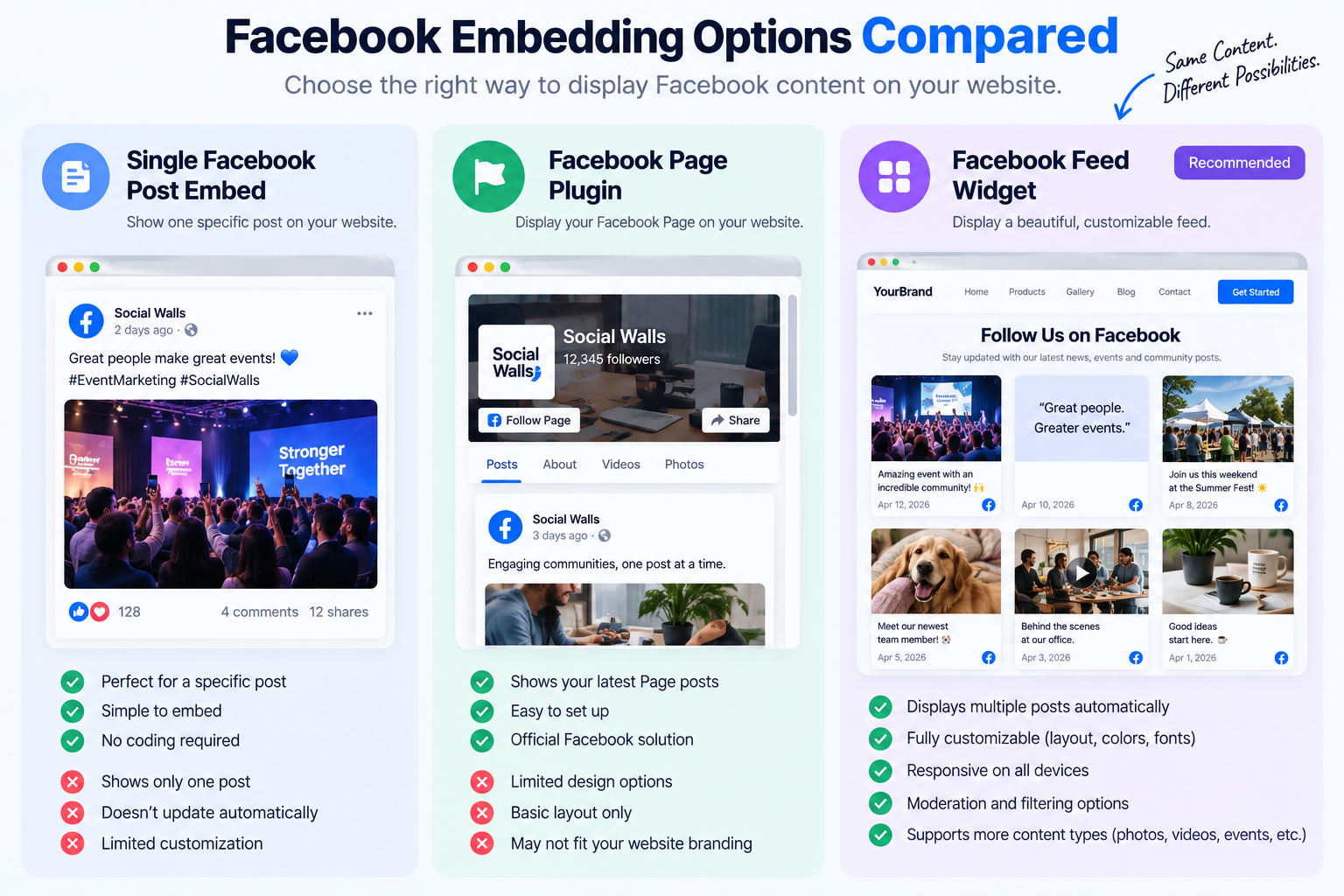
An individual post embed displays one specific post. A Facebook feed widget is designed to display multiple pieces of content and, when the integration supports it, keep the website experience updated as new content is published.
Facebook Feed vs. Facebook Post Embed
A post embed is useful when you want to show one specific piece of content, such as:
- An announcement
- A customer testimonial
- An event post
- A product-related post
- A specific video
A feed is better when you want your website to continuously showcase your Facebook presence rather than manually embedding individual posts.
Facebook Page Feed vs. Facebook Group Feed
A Facebook Page is generally the most straightforward source for a website feed because businesses commonly use Pages as their public publishing channel.
Facebook Group content is different because availability depends on Facebook’s current permissions, APIs, and the access granted to the integration. Always verify current platform support before promising that a particular Group feed can be displayed.
Facebook Feed Widget vs. Native Facebook Embed
A Facebook feed widget is a website component provided by a third-party service. It can make it easier to connect Facebook content, customize its appearance, and embed it into a website.
A native Facebook embed uses Facebook’s own embedding capabilities and can be appropriate when you only need a simple piece of Facebook content.
The right choice depends on how much control, automation, design flexibility, and content management you need.
Why Add a Facebook Feed to Your Website?
Embedding Facebook content is more than a way to fill an empty section of a webpage. Used strategically, it can connect your website with the content and community you’ve already built on social media.
Keep Website Content Fresh
A connected feed can bring recent social content onto your website instead of forcing visitors to leave your site to see what you’ve recently published.
This can be particularly useful for brands that post frequently on Facebook.
Add Social Proof
Facebook content can help demonstrate that your business is active and that real people interact with your brand.
Depending on the content you display, this may include:
- Customer comments
- User-generated content
- Reviews
- Event posts
- Product conversations
- Brand announcements
Showcase More Visual Content
Facebook posts often contain photos, videos, and other visual elements.
Adding this content to the right section of a website can make pages feel more active and provide visitors with additional examples of your brand, products, events, or community.
Connect Your Website and Social Community
Your website and social media channels do not have to operate as separate marketing properties.
A Facebook feed can create a visible connection between the two, helping website visitors discover your social presence while giving social content a longer life beyond Facebook itself.
Show Live Events and Campaign Activity
For events, launches, promotions, and campaigns, a social feed can provide a continuously changing layer of content around the main website experience.
How to Add a Facebook Feed to a Website
There are three common approaches:
- Use a Facebook feed widget.
- Use Facebook’s native embedding options.
- Build a custom integration using APIs and development resources.
For most businesses that want a continuously updated, branded feed, a dedicated widget is usually the simplest route.
Method 1: Use a Facebook Feed Widget
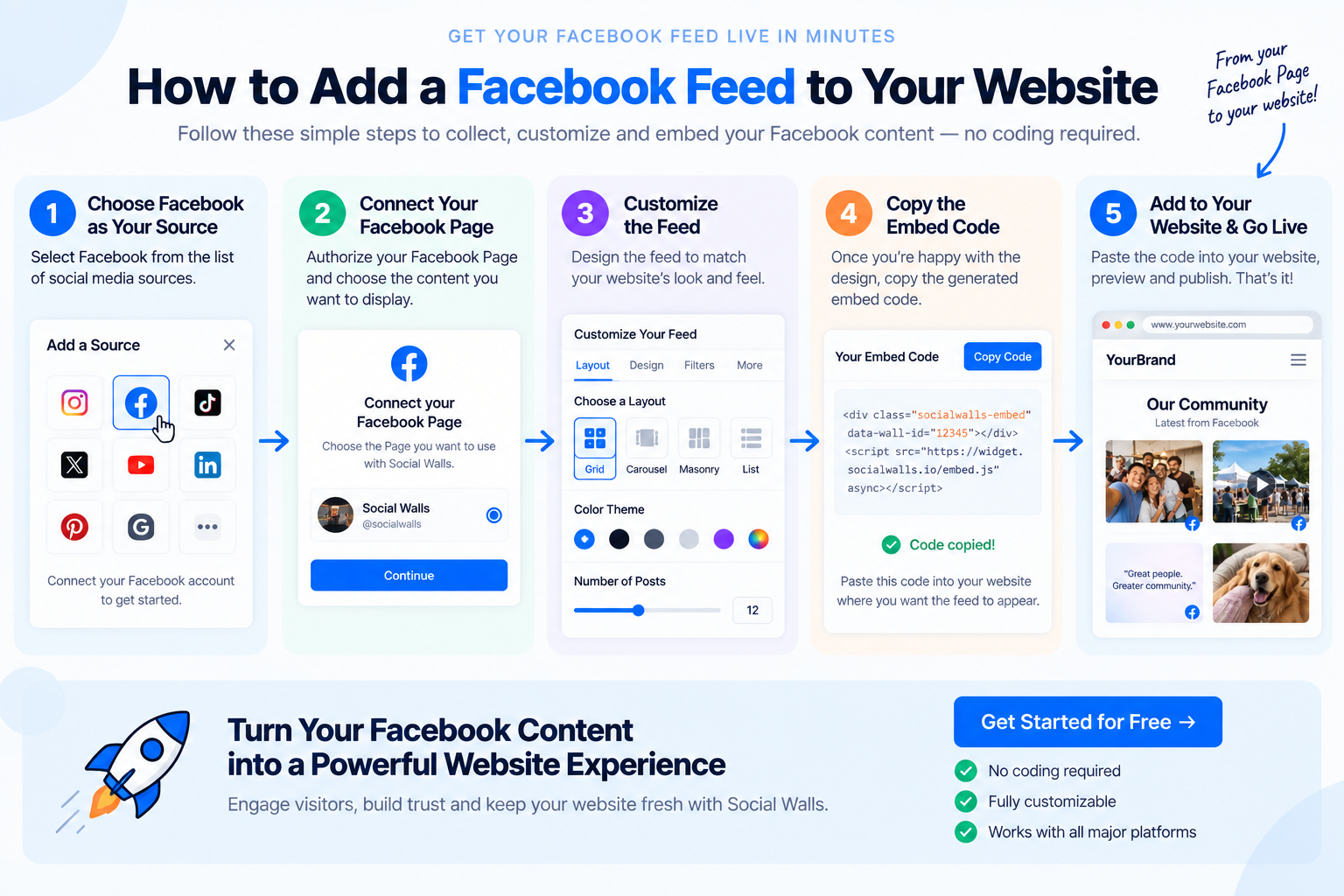
A feed widget removes much of the technical work involved in collecting and displaying social content.
Step 1: Choose Facebook as Your Source
Start by selecting Facebook as the source for your website feed.
Depending on the platform you use, you may be able to connect a Facebook Page or another supported Facebook source.
Step 2: Connect Your Facebook Content
Follow the connection or authorization process provided by the widget platform.
The exact permissions and supported content types can vary, so make sure the integration supports the Facebook content you actually want to display.
Step 3: Customize the Feed
Match the feed to your website rather than dropping an unrelated social widget into the page.
Depending on the tool, customization may include:
- Grid or list layouts
- Colors
- Fonts
- Spacing
- Number of posts
- Card styles
- Branding
- Responsive behavior
- Filters or moderation
Step 4: Moderate the Content
If your feed supports moderation, use it to decide which posts should appear on your website.
This can be particularly useful when the feed includes user-generated content or when you want tighter control over what appears next to your brand messaging.
Step 5: Copy the Embed Code
Once the feed looks the way you want, generate or copy the provided embed code.
Many website widgets use a small amount of JavaScript or an embed element that can be placed wherever the feed should appear.
Step 6: Add the Feed to Your Website
Paste the code into the appropriate area of your website.
Depending on your CMS, this could be a:
- Custom HTML block
- Code block
- Embed element
- Widget area
- Page builder element
Step 7: Test the Feed
Before publishing, check the feed on:
- Desktop
- Tablet
- Mobile
- Different browsers
Also check that it does not create horizontal scrolling, overlap other content, or introduce a large layout shift while loading.
Method 2: Use Facebook’s Native Embed Options
Native embedding can make sense when you want to display a specific Facebook post or a simple Facebook component without the additional customization offered by a third-party feed solution.
Embed an Individual Facebook Post
A single-post embed is useful when one particular Facebook post is important to the page.
For example, you might embed:
- A product announcement
- A major event update
- A customer story
- A campaign announcement
- A video post
This is different from embedding a continuously updating feed.
Embed a Facebook Page
If your goal is to give visitors a way to see your Facebook presence from your website, a Page-based embed may be appropriate.
The exact options and availability of Facebook’s native tools can change over time, so check the current Meta/Facebook documentation before implementation.
Limitations of the Native Approach
Native embedding can be perfectly adequate for simple requirements, but businesses often want more control over:
- Layout
- Branding
- Filtering
- Moderation
- Responsiveness
- Multiple content types
- Website-builder compatibility
- Ongoing content synchronization
When those requirements become important, a dedicated Facebook feed widget can be easier to manage.
Method 3: Build a Custom Facebook Feed Integration
A developer can also create a custom integration using Facebook/Meta APIs and the appropriate authentication and permissions.
This approach gives developers greater control, but it also introduces additional responsibilities.
A custom implementation may require:
- API integration
- Authentication
- Permission management
- Data handling
- Caching
- Error handling
- Ongoing maintenance
- Changes when platform APIs or policies change
For most businesses that simply want to display Facebook content on a website, custom development may be unnecessary.
Facebook Feed Widget vs. Native Facebook Embed
The best method depends on what you need.
| Feature | Native Embed | Facebook Feed Widget |
|---|---|---|
| Basic setup | Suitable | Suitable |
| Individual post | Excellent | Usually supported |
| Feed-style display | Depends on implementation | Designed for it |
| Design customization | Limited/variable | Usually stronger |
| Branding control | Limited/variable | Usually stronger |
| Moderation | Limited/variable | Tool dependent |
| Automatic updates | Method dependent | Typically a core feature |
| CMS flexibility | Variable | Usually broad |
| Responsive layouts | Method dependent | Usually supported |
| Advanced feed presentation | Limited | Stronger |
The important point is not that one approach is always better.
Use a native embed when your requirements are simple. Use a widget when you want a more complete, branded, continuously managed feed experience.
How to Add a Facebook Feed to Different Website Platforms
Once you have the feed or embed code, the implementation depends on your website platform.
How to Add a Facebook Feed to WordPress
WordPress users can typically add a feed through a social media feed plugin, widget, block, page builder, or custom HTML depending on the implementation.
Common placements include:
- Gutenberg editor
- Elementor
- Custom HTML blocks
- Widget areas
- Theme sections
For a more detailed implementation guide, see our guide on [how to embed a Facebook feed on WordPress].
How to Add a Facebook Feed Using HTML
HTML is useful when your website lets you add custom code.
A typical workflow is:
- Generate the Facebook feed or widget.
- Copy the provided embed code.
- Open the HTML or custom-code area of your site.
- Paste the code.
- Publish.
- Test the feed on desktop and mobile.
If you’re using a script-based widget, avoid placing unnecessary copies of the same script on multiple sections of a page.
See our detailed guide to [embedding a Facebook feed using HTML].
How to Add a Facebook Feed to Squarespace
Squarespace commonly gives site owners ways to add embedded content through code or embed blocks.
The process is generally:
- Create your feed.
- Copy the embed code.
- Add an appropriate code or embed block.
- Paste the code.
- Save the page.
- Check the desktop and mobile presentation.
Pay particular attention to the widget’s width and height so the feed fits the page rather than producing horizontal scrolling.
How to Add a Facebook Feed to Wix
For Wix, use the appropriate embed or custom-code element supported by your current Wix setup.
After adding the feed:
- Check the widget dimensions.
- Preview the mobile version.
- Make sure the feed does not overlap surrounding content.
- Test the page after publishing.
How to Add a Facebook Feed to Weebly
Use the website builder’s available embed or custom-code element, then place the feed where you want it to appear.
Always check the published page rather than relying exclusively on the editor preview.
How to Add a Facebook Feed to Google Sites
Google Sites has its own embedding workflow and limitations.
Use the available embed option, then test the published version to confirm that the feed loads correctly and maintains the intended dimensions.
How to Add a Facebook Feed to GoDaddy Websites
Use the custom HTML/embed functionality available in your current GoDaddy website editor.
Because website-builder interfaces change over time, confirm the current editor’s recommended embed method before publishing.
What Types of Facebook Content Can You Embed?
What you can display depends on the Facebook source, integration method, permissions, and current platform/API capabilities.
| Facebook Content | Typical Use |
|---|---|
| Page posts | Brand updates and announcements |
| Photos | Product and community content |
| Videos | Demonstrations, interviews and campaigns |
| Reels | Short-form visual content |
| Reviews | Social proof |
| Live content | Events and live broadcasts |
| Events | Event promotion and updates |
| Albums | Product or event galleries |
| Hashtag content | Campaigns and community activity |
| Group content | Community content, where supported |
Because Meta changes its platform capabilities over time, verify the current support for any content type—especially Groups, hashtags, and API-based integrations—before promising a particular feed capability.
How to Customize a Facebook Feed
The feed should feel like part of your website, not an external object pasted onto it.
Choose the Right Feed Layout
Depending on the tool, common layouts may include:
- Grid
- List
- Masonry
- Carousel
- Slider
Choose the layout based on the role of the feed.
A product page may benefit from a compact grid, while an event page may work better with a larger visual stream.
Match Your Website Branding
Keep the visual language consistent with the rest of the page.
Consider:
- Brand colors
- Typography
- Card spacing
- Border radius
- Image proportions
- Button styles
Control the Number of Posts
More content does not automatically mean a better experience.
Show enough posts to communicate activity without pushing the page’s primary content too far below the fold.
Filter and Moderate Content
Moderation becomes especially useful when social content is being used as a trust or conversion element.
You should know exactly what visitors will see before the feed goes live.
Make the Feed Responsive
A feed that looks excellent on a 1440px desktop can become frustrating on a phone.
Check:
- Card width
- Image cropping
- Text wrapping
- Button size
- Horizontal scrolling
- Spacing
- Touch interaction
Does a Facebook Feed Update Automatically?
It depends on how the feed is implemented.
A third-party widget can be designed to synchronize connected Facebook content automatically, while an individual native post embed is fundamentally tied to the specific post you embedded.
If automatic updates are important, confirm:
- How frequently the integration synchronizes
- What happens when permissions change
- How errors are handled
- What happens when a source becomes unavailable
Why a Facebook Feed May Stop Updating
Common causes can include:
- Changed permissions
- Expired or invalid authentication
- API changes
- Source changes
- Temporary service issues
- Incorrect configuration
- Caching
- Removed or unavailable content
When troubleshooting an inactive feed, first verify that the Facebook source is still available and that the connection remains authorized.
Does a Facebook Feed Slow Down Your Website?
It can.
Any third-party embed can add network requests, JavaScript, images, or other resources to a page.
That does not mean every Facebook feed will create a serious performance problem. The impact depends on how the feed is implemented, how much content it loads, and how the page handles third-party resources.
Google recommends that important content remain available in textual form and that sites provide a good page experience. Core Web Vitals are part of that broader experience, although good scores alone do not guarantee high rankings.
How to Reduce Performance Impact
Consider:
- Lazy loading where appropriate
- Limiting unnecessary third-party scripts
- Avoiding multiple copies of the same embed
- Optimizing images
- Reserving space for the widget
- Testing mobile performance
- Monitoring Core Web Vitals
Watch Your Core Web Vitals
The key metrics are:
- LCP: how quickly the main content becomes visible
- INP: how responsive the page is to interaction
- CLS: how stable the layout remains while loading
Do not chase a perfect score simply for the sake of the score. Focus on a fast, stable and usable page.
How to Make a Facebook Feed Mobile-Friendly
Mobile visitors should get the same essential experience without fighting the layout.
Check that:
- Cards resize correctly
- Images do not overflow
- Text remains readable
- Buttons are easy to tap
- The feed does not create horizontal scrolling
- The widget does not push the main CTA unnecessarily far down the page
Always test the actual published page on a phone.
Facebook Feed Troubleshooting
Facebook Feed Is Not Showing
Check:
- The embed code is correct.
- The source is still connected.
- Required permissions are active.
- The page is not blocking the relevant script.
- The widget has not been disabled.
- Your browser or caching layer is not serving an outdated version.
Facebook Feed Is Not Updating
Start by checking the source connection and authentication.
If you’re using a third-party widget, check its connection status and synchronization settings.
Facebook Feed Looks Too Wide
Check:
- Container width
- Widget width settings
- Parent-column width
- Custom CSS
- Mobile breakpoints
Facebook Feed Is Not Responsive
Look for fixed-width containers or embed settings that prevent the feed from resizing.
Test the widget at several viewport sizes rather than checking only one desktop width.
Facebook Feed Is Blank on WordPress
Check whether:
- The plugin or embed is active
- The required code is in the correct block
- A security or optimization plugin is blocking scripts
- Caching is serving outdated content
- The page builder is stripping or modifying the embed
Facebook Feed Slows Down the Page
Use PageSpeed Insights or another performance testing tool to identify which resources are responsible.
Do not assume that Facebook itself is the only cause. Other scripts, images, fonts and plugins may contribute to the result.
Facebook Group Feed Is Not Available
Do not assume that a Facebook Group can be embedded in the same way as a public Facebook Page.
Group integrations can depend on Facebook’s current API policies, permissions and the capabilities of the tool you’re using. Check current documentation before selecting an implementation.
Native Facebook Embed vs. Facebook Feed Widget: Which Should You Choose?
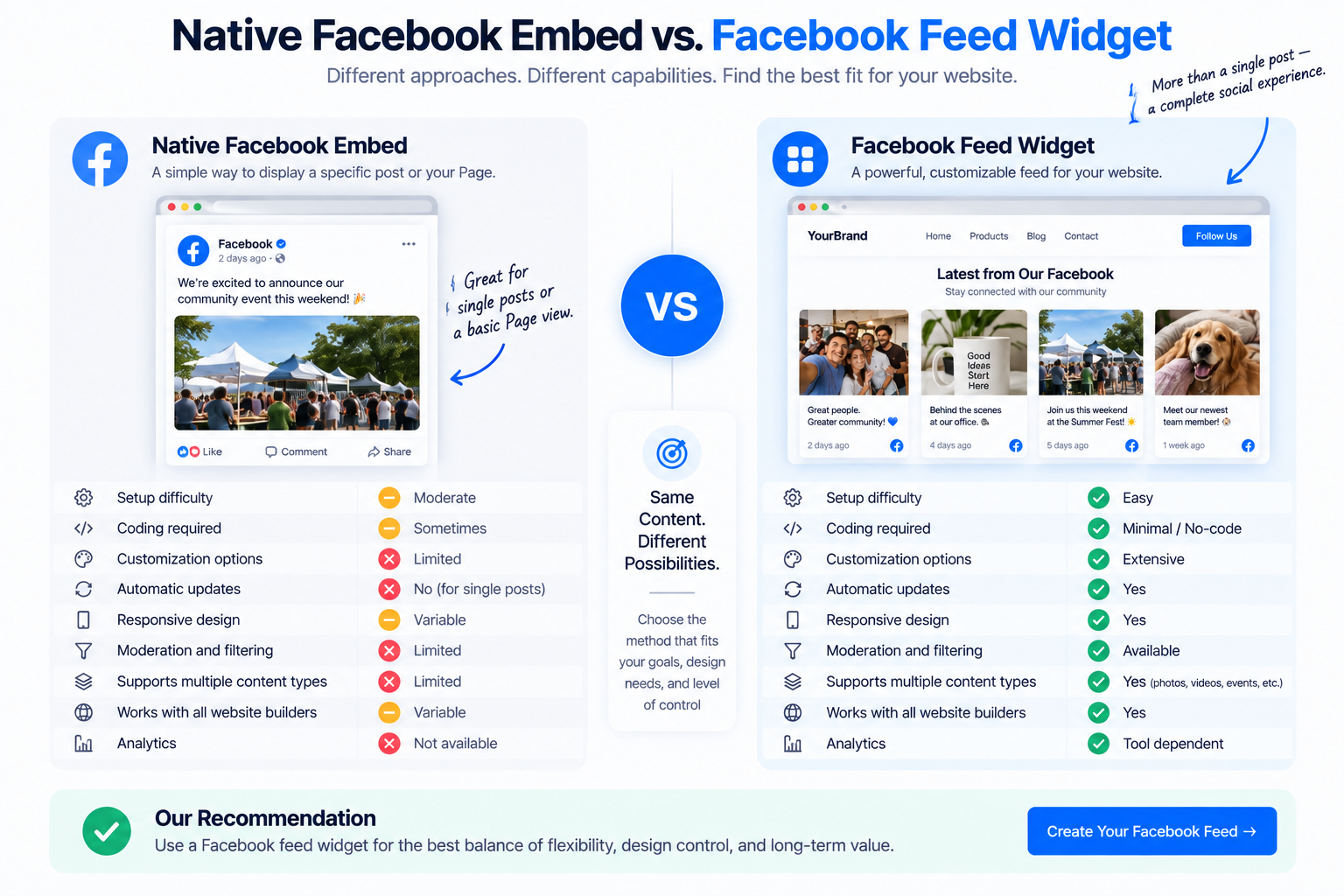
Choose a Native Embed If…
A native solution can make sense when:
- You only need one specific post.
- You need a simple implementation.
- You do not need extensive design customization.
- You are comfortable with the limitations of the native experience.
Choose a Facebook Feed Widget If…
A widget is usually a better fit when:
- You want a continuously updating feed.
- You need a branded design.
- You want responsive layouts.
- You need moderation or filtering.
- You want a simpler implementation.
- You want to reuse the feed across different website platforms.
- You want more control over how social content appears.
Choose a Custom API Integration If…
Custom development can make sense when you have requirements that cannot be met by a native embed or existing widget.
For example, a larger organization may need custom data processing, unique business logic, or a highly specialized interface.
For most marketing websites, however, the additional development and maintenance may not be justified.
Expert Tip: Don’t Add a Facebook Feed Just Because You Can
A social feed is most useful when it supports the visitor’s goal.
For example:
- Put customer content near a product section.
- Place event content on an event page.
- Add social proof near a conversion point.
- Use campaign content on relevant landing pages.
- Put broader community content where visitors are exploring your brand.
The best feed is not necessarily the biggest one.
The best feed is the one that gives visitors useful context at the moment they need it.
For Social Walls, that could mean turning Facebook content into a visual social proof layer instead of treating it as an isolated “social media” section.
Real-World Example: Add a Facebook Feed to an Ecommerce Website
Imagine an ecommerce product page that already contains:
- Product images
- Product information
- Pricing
- Reviews
- Call-to-action buttons
Instead of adding another generic marketing section, the brand could introduce a Facebook feed featuring relevant customer or brand content.
Before
The page relies primarily on:
- Product photography
- Static descriptions
- Traditional review content
After
The page can add a dynamic social layer containing:
- Facebook posts
- Customer content
- Product conversations
- Campaign imagery
- Social proof
The important part is placement.
The feed should support the product decision rather than distract from it.
Measure the Result
Don’t assume that embedding a feed automatically improves conversions.
Track real outcomes such as:
- Feed impressions
- Feed interactions
- Clicks
- Product-page engagement
- CTA interactions
- Assisted conversions
- Sales where measurable
Google’s current guidance similarly emphasizes creating content and experiences that genuinely satisfy users rather than optimizing for search engines alone.
Frequently Asked Questions About Facebook Feeds
How do I add a Facebook feed to my website?
The simplest approach is usually to use a Facebook feed widget: connect your Facebook source, customize the feed, copy the generated embed code, and place it in your website’s HTML, embed, or widget area. You can also use Facebook’s native embedding options when your requirements are simpler.
Can I embed a Facebook Page on my website?
Yes, depending on the current Facebook/Meta embedding options and the implementation you choose. A dedicated widget can also provide a more customizable way to display Facebook Page content.
How do I embed a Facebook feed in HTML?
Generate the feed or widget, copy its embed code, and paste it into the appropriate HTML or custom-code section of your website. Test the published page on both desktop and mobile.
Can I add a Facebook feed to WordPress?
Yes. Depending on your setup, you can use a plugin, page-builder element, custom HTML block, widget, or a third-party feed widget.
Can I embed a Facebook Group feed?
Group support depends on Facebook’s current API, permissions and the integration being used. Do not assume that every Facebook Group can be displayed as a continuously updating website feed.
Can I embed a Facebook Live feed?
Live content can be displayed using supported Facebook/video embedding methods, but the best implementation depends on whether you want to show an individual live video, an ongoing stream, or a broader Facebook feed.
Does a Facebook feed update automatically?
A continuously connected widget can update automatically depending on the service and its synchronization process. An individual post embed does not function in the same way because it represents a specific piece of content.
Do I need admin access to the Facebook Page?
It depends on the method and integration. Native public content and authenticated API-based integrations can have different permission requirements.
Can I customize a Facebook feed?
Yes, customization varies by implementation. Dedicated feed widgets generally provide more control over layouts, colors, spacing, filtering, branding and responsive behavior than simple native embeds.
Is a Facebook feed responsive on mobile?
It can be, but you should test the implementation. Responsive behavior depends on the embed or widget, its container, and your website’s CSS.
Does a Facebook feed slow down my website?
It can add third-party requests and JavaScript, so it should be tested. Lazy loading, efficient implementation, proper image handling and avoiding unnecessary scripts can help reduce the performance impact.
Can I embed Facebook reviews?
Some tools and integrations support Facebook review content, but availability depends on the current Facebook platform capabilities and the specific integration.
Can I embed a single Facebook post?
Yes, where Facebook’s current native embedding capabilities allow it. An individual post is often simpler to embed than a continuously updating feed.
Do I need a Facebook developer account?
Not necessarily. A ready-made widget can handle much of the technical integration for you. A custom API implementation may involve developer resources and additional authentication requirements.
Is it better to use Facebook’s embed tools or a widget?
Use the simplest solution that satisfies your requirements. Native embeds are suitable for straightforward use cases, while a widget is often a better option when you need customization, automatic updates, responsive layouts, moderation and easier website integration.
Ready to Add a Facebook Feed to Your Website?
Your Facebook content doesn’t have to stay inside Facebook.
Bring your social content onto your website, customize how it looks, and turn your Facebook presence into a more useful part of your website experience.




Leave a Reply